Upload each track as a WAV or FLAC file of up to 500 MB. MP3 and other formats aren’t accepted. Upload the final master: what you upload is what the stores receive.

File requirements

Upload your audio

  1. Open your release in the builder and go to the Tracks section.
  2. Upload or drop your files. Each file becomes a track, and its file name becomes the track title. Check and correct the titles afterwards.
  3. Drag tracks to put them in order.
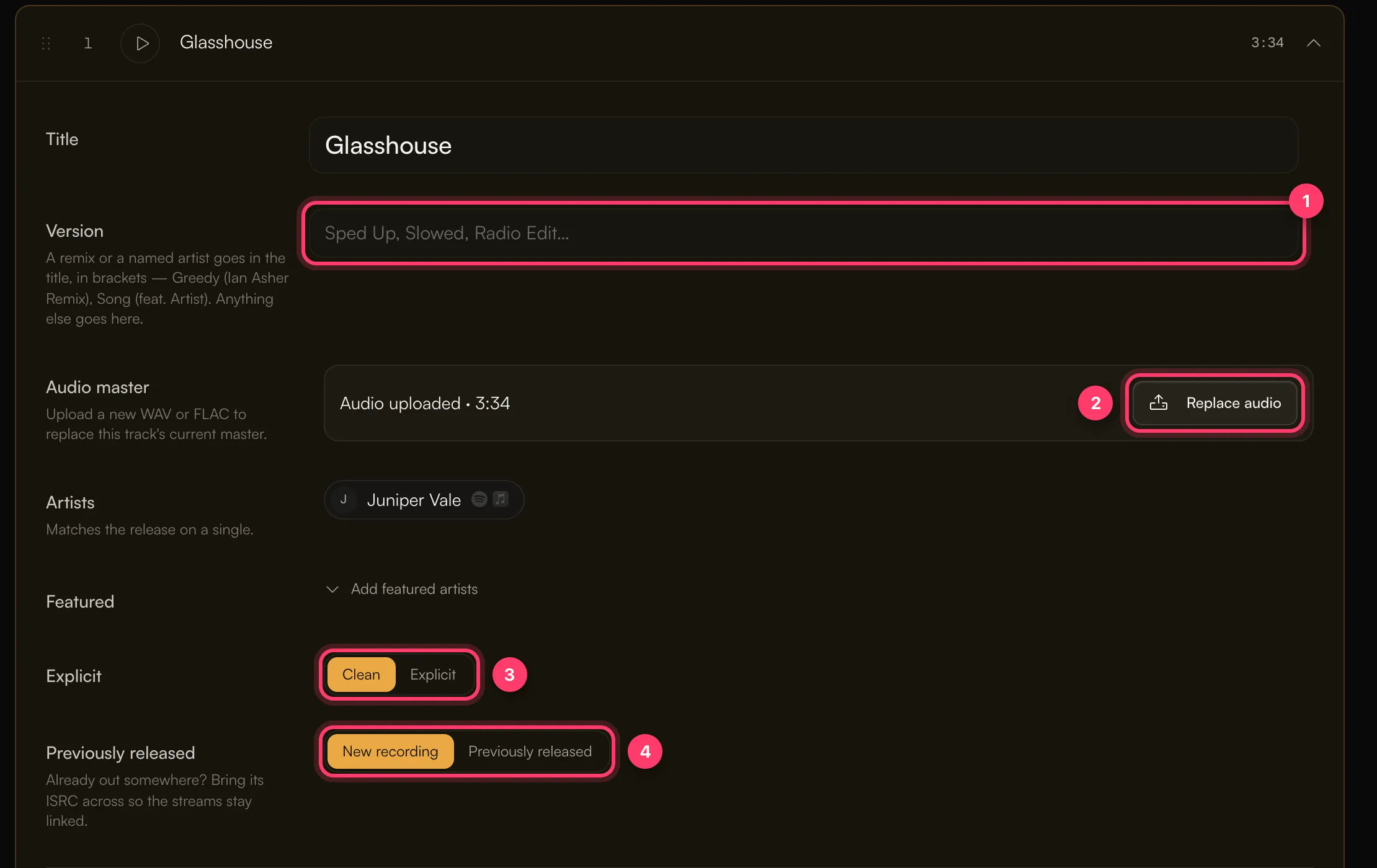
To swap a track’s audio before you submit, open the track and click Replace audio under Audio master. Click the play button on a track to listen and check you uploaded the right version. An open track showing the Version field, the Replace audio button, the Explicit switch and the Previously released switch

Upload errors

If an upload stops partway, check your connection and upload the file again.

Things to check before you submit

  • The right version. Listen to each track in the builder. A clean and an explicit version of the same song are separate recordings.
  • Explicit content. For a track with vocals, set Not explicit or Explicit to match the lyrics. A track you mark instrumental is delivered as not explicit.
  • No silence or extra material you don’t want in stores, such as count-ins or long gaps at the end.
Once your release is in stores, you can’t change its audio. Check every track before you submit.

Common questions

Can I upload an MP3?

No. Only WAV and FLAC files are accepted.

Do you check bit depth or sample rate?

The builder doesn’t reject files based on bit depth or sample rate. Upload the master your mastering engineer delivered.

A track I already released elsewhere: do I upload it again?

Yes. Upload the audio, then mark the track Previously released and enter its existing ISRC so the streams stay linked. See Previously released music, ISRCs and UPCs. Related: Create a release, step by step · Titles, versions and featured artists · Previously released music, ISRCs and UPCs · Check and submit your release